Using Spreadsheets to Track Your Revision

I use spreadsheets to track my editing progress as I work my way through a manuscript. It shows me very clearly how much progress I’ve made and how much left I still have to do.

I tweaked the spreadsheet I created for myself to make it into a template anyone can use (in theory—let me know if you’re unable to save a copy for yourself!).

Here’s the spreadsheet in Google Sheets. Go to File > Save a Copy to save and modify your own.


(The Google Sheets version also has formulae if you don’t want to work chronologically!)

Spreadsheet tracking revision or editing progress

If that doesn’t work, I’ll walk you through the steps to make your own.

First open up a new spreadsheet and include the column headers (Project, Project Name) and row headers (Total Pages, # Complete, Section 1, 2, etc.) as seen above. If you have more than one project, create more rows for that.

Each project is three columns, with its first two rows each merged into one cell, which is why Project Name and the number of total pages are both centered. So merge B1+C1+D1 into one cell and repeat for B2+C2+D2.

Then in B2, enter the total number of pages for your project. In this example, I’ll use 300 since it’s a nice round number.
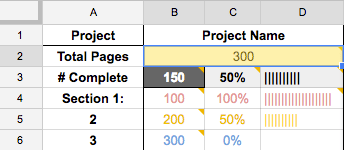
total number of pages to revise or edit

I filled B3 with a dark gray and turned the text white to remind me that when this template is all set up, that’s the only cell I need to update. I also set C3 and D3 with bold text and a very light gray fill, to set that progress apart as the total progress.

Decide how many sections you want to divide your project into. We’ll do three for this example, but you can add as many as you’d like.

Find the page number that Section 1 ends on. That’s the number you’ll put into B4. For example, if Section 2 starts on page 109, then Section 1 ends on 108, so enter 108 here.

Repeat for the remaining sections. Your last section (Section 3, or B6 here) should have the same number as your total pages (B2).

The total percentage completed (C3) is easy enough: it’s the number complete divided by the total number of pages. So in C3, enter

=B3/B2

This is where the formulae get a little tricky. We want to make sure that the numbers in column C stay between 0% and 100%.

The percentage finished in section 1 (C4) is the number of pages complete divided by the total pages, maxing out at 100%. So in C4, enter

=MIN(B3/B4,1)

The percentage finished in section 2 (C5) is the number of pages complete (B3), minus the number of pages in Section 1 (B4) divided by the total pages (B2), with a minimum of 0% and maxing out at 100%. So in C5, enter

=MAX(MIN((B$3B4)/(B5B4),1),0)

(Yeah, I definitely had to do some digging to figure that one out!)

For C6, you can copy and paste C5. Thanks to the trick Leigh suggested in the comments (adding the $), that first cell will stay B3 even when you copy and paste.

You can continue copying and pasting, but make sure that the formulae in the percentage column always start with the total number of pages. In my template, those cells are shaded dark gray.

Now for column D, the bar graphs. This is something else I had to look up and modify to fit my needs.

All we’re doing is taking the percentages in column C and turning them into graphs, with one vertical line (shift + the key under “backspace” or “delete”). We want 1 line for each 5%.

editing or revision progress graph with spreadsheet

Start with D3:

=REPT(“|”,(C3*20))

Then copy and paste down the column. The C3 will adapt for each cell, changing to C4, C5, etc.

One last thing: quickly enter the total number of pages into B3 so you can see how much 100% is, then rescale the D column to fit. Otherwise 100% won’t look like 100% 🙂

If you save a copy of the template I created, you can copy and paste the H–J columns to create more projects.

Now that you’ve got your spreadsheet all set up, update B3 with how many pages you’ve completed, and watch the bars fill up!


xo Lara

ThanksGIVING

Contents

  • 15 Bookish & Writerly Things I’m Thankful For
  • My Gift to You
  • Small Business Saturday–Cyber Monday Editing Deals

15 Bookish & Writerly Things I’m Thankful For

  1. My editing clients! I wouldn’t be able to blog or stay home with my kids if it weren’t for you. I’m daily inspired and encouraged by your creative spirits. You’re THE BEST.
  2. The books patiently waiting by my bedside for me to read them
  3. My local library, for saving me hundreds of dollars a year with all their books and comics and movies.
  4. Librarians, for being insanely helpful and brilliant.
  5. This reminder from Shannon Hale:
    https://twitter.com/haleshannon/status/636907891379736576
  6. This GIF:
    https://twitter.com/larathelark/status/667520389229101056
  7. Indie Booksellers (like Addendum Books) and lit mags (like Revolver) who put on awesome literary events.
  8. The social media accounts which show how hilarious and human book publishers are.
  9. The couple hundred writers who participated in #pg70pit this summer—Thank you! We’ll be doing it again in 2016!
  10. The readers & writers who joined in my first BookDeeply writing seminar / book club. (You can still join! Nominate next spring’s debut author in the comments below.)
  11. My fellow MS Editors—you raise me up so I can stand on mountains. Oh, wait, that’s Josh Groban.
  12. Writing/editing/reading social media—Twitter, for helping me find my tribe, and Bookstagrammers, for making my daily doses of books and design easy and convenient.
  13. The community of comics creators at OA Live.
  14. FREE COMIC BOOK DAY
  15. And YOU, for reading my blog! Thank you!

blowkiss

What literary wonders are you thankful for this year? Share in the comments!

My Gift to You

If you are not of a geeky persuasion and/or have no appreciation for popular culture, you probably won’t appreciate this. But if you know who Pavel Chekov is, then I hope you like and enjoy.

I made a series of geeky to-do/checklists for you. I call them…

wait for it…

the CHEKOV LIST.

I’ve got blue ones with trekkie insignia…

chekovblue

Assorted colors for color-coders:
chekovmulti

and black and white sketchy ones for those trying to save some toner…
chekovblack

They’re free! You can download them by clicking the image below.

If you do download them, and if you enjoy them, do me a favor and rate them on Teachers Pay Teachers, please!

Eventually I’ll add more writing worksheets to that site, so let your writing instructors know about it. 🙂

Have fun with these, print out a bunch for friends, enjoy!

downloadEditing Deals

From now through Cyber Monday, request a quote from me to receive big discounts!

SBSdeal

Note: November is the craziest month for Marine families, so my posting schedule is a bit off! We had the Marine Corps Birthday Ball last weekend and have Thanksgiving tomorrow, so November’s query workshop and the Act Three post will be a bit delayed.

Time Management (& Printable 2015-2016 Quarterly Calendar)

One of my goals for October is to get more organized and be better at time management. The problem with being a work-at-home mom is that I’m always working and I’m always a mom! I’m all for being holistic, but nobody should be working all the time!

I’ll start with my calendar management, and then I’ll share the app I use to schedule my days.

Calendar Management

I took a class at my university called Writing for Organizations, and during that, I was taught how to use Gantt Charts to map out projects. I’m a visual person, so I really enjoyed it. But I haven’t applied that chart since! I created a template in Excel so that I can start using it to plan out individual months.

gantt chart

Download the Excel Template

I also created a quarterly calendar, originally for our family so we could see the whole year at a glance, but then I decided it would work really well for planning out my projects, too. In fact, you could use highlighters to create Gantt Charts on your calendar.

FIND THE 2018 PRINTABLE QUARTERLY CALENDAR HERE


Day Management

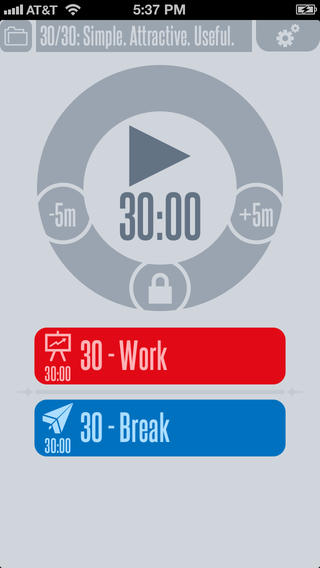
First I downloaded a Pomodoro app. The Pomodoro Technique is to set a timer for 25 minutes, work that entire time, take a 5-minute break, and then repeat two more times. After three or four “pomodoros” you get a longer break.

I picked 30/30 because I liked the graphics and the ability to color code.

30-30

You can modify your ratios between work and break. I generally split the hours up this way: 40 minutes doing something I like (like editing). 5-minute break, 10 minutes doing something I dread (like answering emails or doing dishes), and another 5-minute break.

I also schedule in leisure time, food prep, and play time with my kids. Having the day mapped out with this app helps me to see that I DO have time for everything. 30/30 is especially recommended for people with ADD/ADHD.

Motivation

If you’re struggling with motivation, I recommend the Coach.Me app. You can also try Habitica for an RPG-inspired app.


What are your favorite methods for time management? Share in the comments.

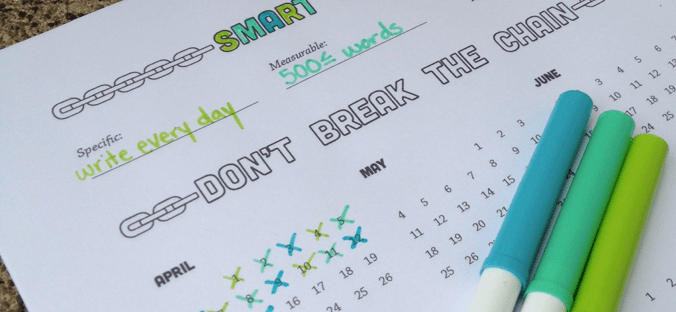
[free printable!] SMART Goals & Don’t Break the Chain

I’ve updated the SMART goals and Don’t Break the Chain calendar with a printable calendar for 2015! Make and keep your resolutions with this free download.

Lara's avatarLara Willard

UPDATE: Links have been updated with a full 2015 calendar!

I don’t really do New Years resolutions in January. Sometimes I set goals for myself, but April is generally my goal-setting month because it’s the month in which I was born. Doesn’t hurt that it starts with April Fool’s Day, so if I make a completely unreasonable goal, I suppose I could change my mind on April 2nd.

Back in January I decided 2014 was THE year for me to once and for all finish the manuscript I’ve been working on. The past few months I’ve been reading up on productivity, attending time-management and goal-setting workshops for artists, and setting short term and long term goals.

There’s a difference between a goal, though, and a SMART goal.

Making SMART Goals

S-Specific

Your goal needs to be specific. “Be a better person” is a good ideal, but not a…

View original post 735 more words